


At the top, this page shows the running version (the software currently active) and the installed version (the version according to the package manager; it shows "not installed" if SmartPi was never installed as a package – the two may briefly differ until the service restarts).
Only one operation can run at a time – while one is running, all buttons below are locked and a status field with a progress log appears.
Upload update package
- Select a file (
.deb) and click Upload to install a SmartPi update package manually. Example: asmartpi_2026.09.17-bookworm_arm64.debprovided by the manufacturer.
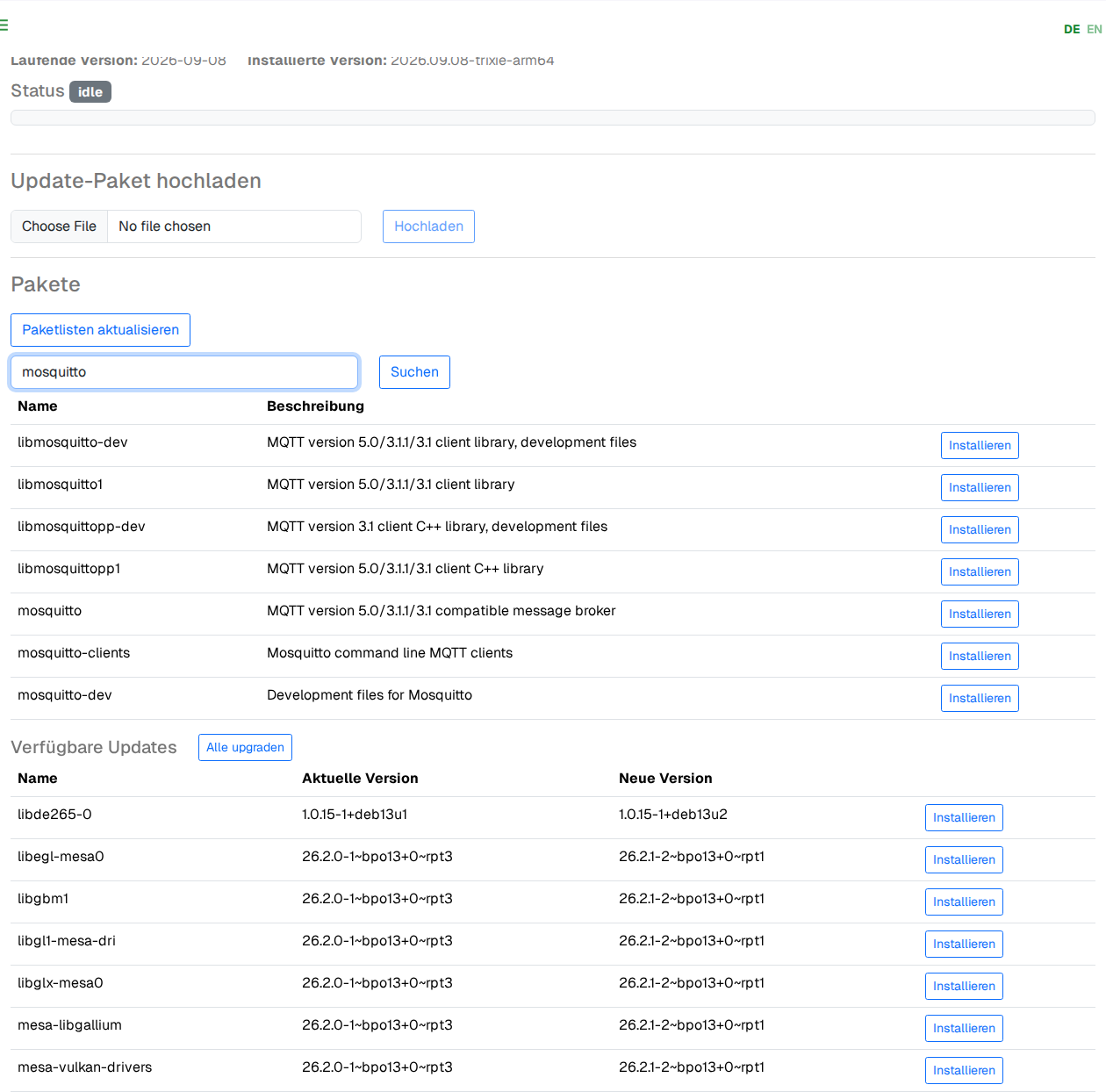
Packages (apt)
- Update package lists: equivalent to
apt-get update– fetches the current list of available packages from the configured sources. - Search packages: search field, e.g.
mosquitto, with a Search button (or Enter). Results appear with name, description and an Install button on each row. - Available updates: list of all packages for which a newer version is available (current version → new version), each with its own Install button, plus Upgrade all to update all listed packages in one go.
Example: after "Update", "Available updates" shows e.g. influxdb2 2.7.0 → 2.7.3 – clicking Install on this row updates only this one package, whereas Upgrade all updates all the displayed packages at once.