



To set up the system in the online portal, you need the serial number and the MAC address of the e.manager.
You can find the serial number and the MAC address here:
- Label on the device (left-hand side)
- Label on the box
- Home page of the internal web interface
Installation wizard
The installation wizard guides you step by step through setting up your PV system.
You can access the wizard at the following address:
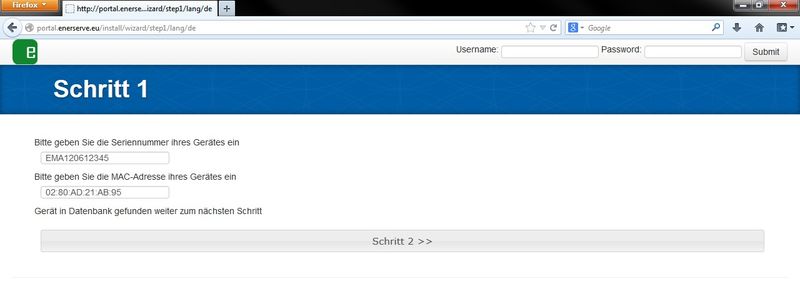
Step 1
Enter the serial number and the MAC address.
Please note that the input is case-sensitive. The MAC address must be entered in the following format: XX:XX:XX:XX:XX:XX
If the serial number and MAC address are correct, the button for the second step appears.
Please note that the input is case-sensitive. The MAC address must be entered in the following format: XX:XX:XX:XX:XX:XX
If the serial number and MAC address are correct, the button for the second step appears.
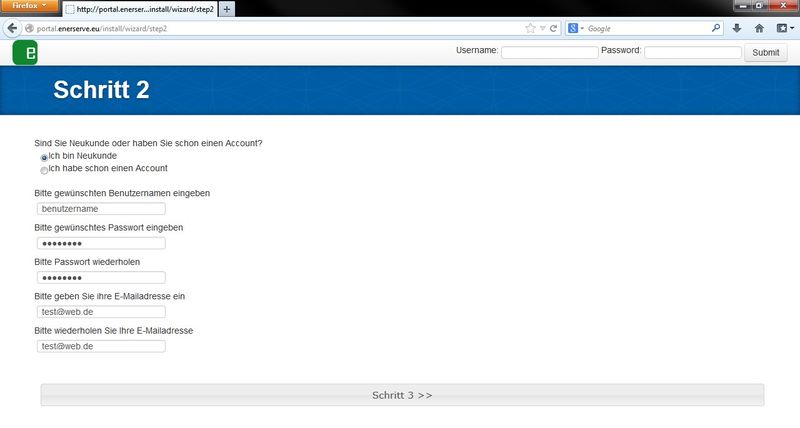
Step 2
In the second step, you can choose whether the new system is to be assigned to an existing main account or whether a new main account is to be created.
Example:
As an installer, you want to create a system with its own main account for the end customer. In that case, select "I am a new customer" and create the system. Later, you can make the new main account a sub-account of your own main account.
Example:
As an installer, you want to create a system with its own main account for the end customer. In that case, select "I am a new customer" and create the system. Later, you can make the new main account a sub-account of your own main account.
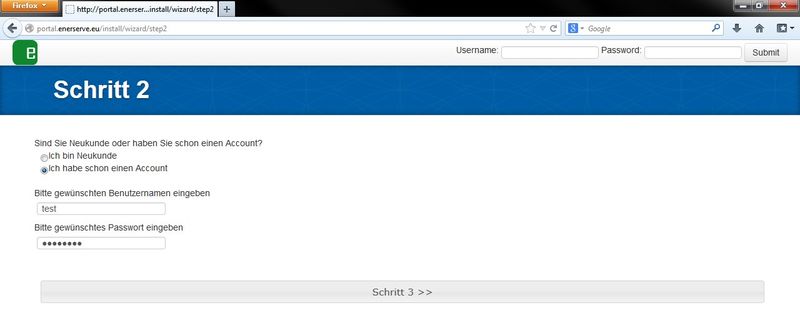
As a new customer, please enter a user name (no umlauts or other special characters), a password and your email address.
If you already have a main account, enter your user name and password.
If you already have a main account, enter your user name and password.
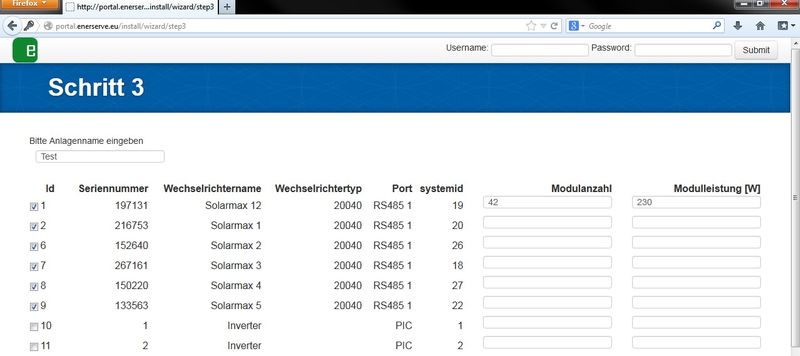
Step 3
In the third step, all inverters, meters and other devices connected to the e.manager are displayed.
- Enter a system name (e.g. PV system Main Street)
- Deactivate the devices that are not to be included in the system.
- Enter the number of modules and the module power
You can change all details later, or add or delete devices.
The devices labelled PIC in the Port column are the digital and analogue inputs, e.g. 1=Digital 1; 2=Digital 2; 9=Analogue 1; 10=Analogue 2, …
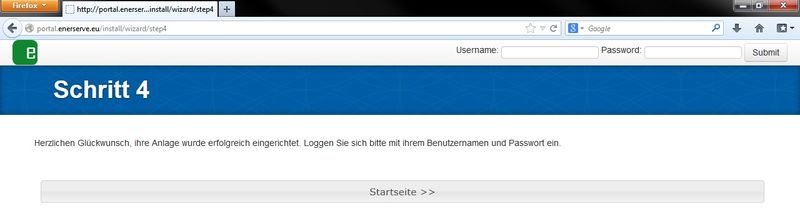
Step 4
In the fourth step, you have created the system and can log in with your access credentials.