



Customer management has a hierarchical structure. A higher-level account can view and manage all systems of the accounts below it.
There are two different types of account:
- Main account: full access, for all systems
- Guest access: access to all measured values, no changes possible
There are two variants of guest access:
-
- Guest access for a main account: the guest can see all systems that the main account can see
- Guest access for one system only
You can find customer management under Configuration => Customer data.
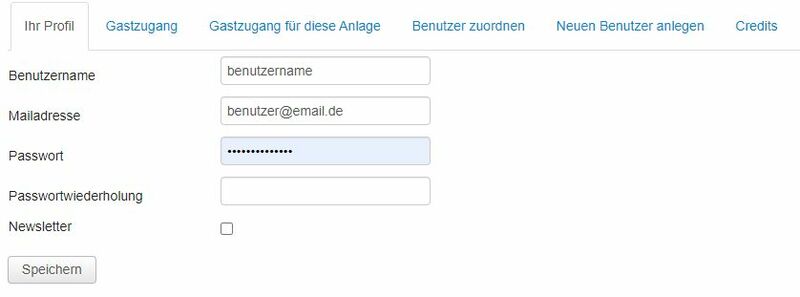
Your profile
Here you can change your user name, email address and password.
Each user name can only be assigned once. If the user name you want is already taken, you will be asked to choose another one. Umlauts are not permitted and are converted automatically, e.g. ä becomes ae.
Please note that if you change the user name, it is also changed automatically for the guest access.
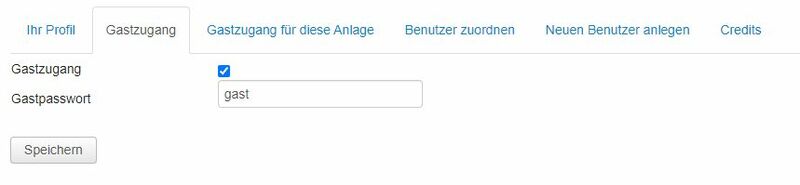
Guest access
On the Guest access tab you can activate guest access. As the user name for the main account and the guest access is identical, you must assign a password that differs from your own.
Please note that if you change the user name, it is also changed automatically for the guest access.
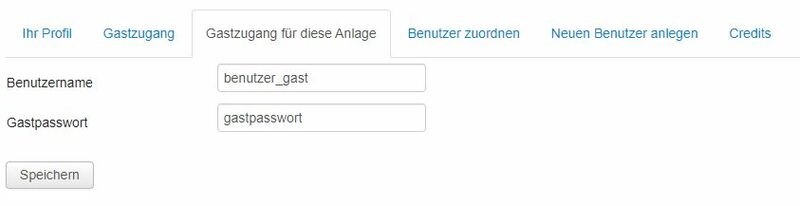
Guest access for this system
With this option you can set up guest access for just one system. The guest can then only see this system and not the other systems in your account. Please enter a user name and a guest password.
Make sure that the user name is not identical to that of the main account.
Make sure that the user name is not identical to that of the main account.
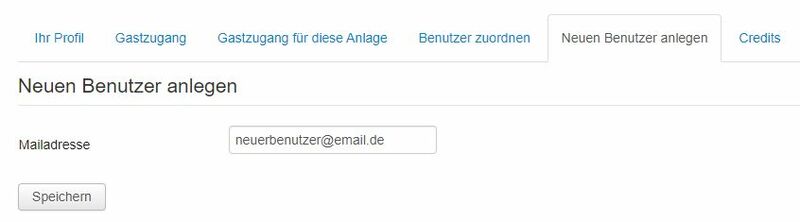
Create new user
With this option you can create a new user. To do so, please enter the email address of the new user. If the user already exists, a new user cannot be created.
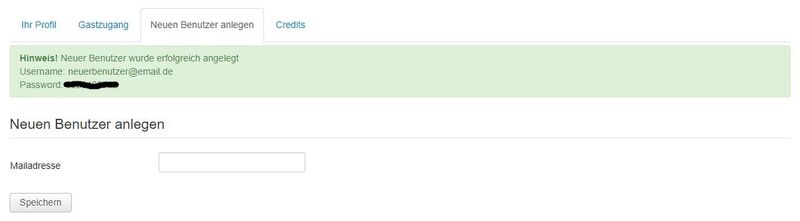
Once you have created the user, you can send the user the login details.
The login details are not sent automatically!
The new user then has a new main account. If you only want to give the customer guest access, you can log in with the new user details and create a guest access (see above).
So far you have only created a new user. This user does not yet have access to any system. To grant access, you must assign the user.
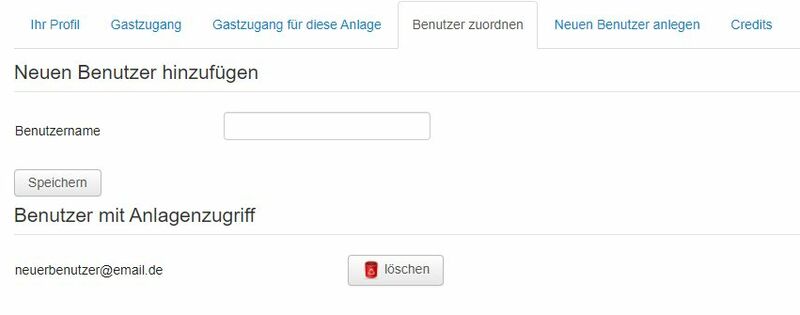
Assign user
You only see this item if you have selected a system.
At the top, enter the user name, e.g. the one you have just created, and click Save.
The lower section shows the users who have access to the systems.
At the top, enter the user name, e.g. the one you have just created, and click Save.
The lower section shows the users who have access to the systems.